
Forex Training – Forex MetaTrader Training
Scripts, Experts and Indicators are the tools for assisting the trader and can be run on MetaTrader.
In previous articles, you got only familiar with each of these tools, but installing and running these files is almost the same. Installing is very easy according to this tutorial even if you are newbie to the environment of MT4 and you can easily install and use any of these tools.
How to install scripts, experts and indicators in MetaTrader
Download the script, the expert or the indicator file you want from our site or any other website.
If the file is compressed (zipped), unzip it and then copy it.
Open the MetaTrader platform.
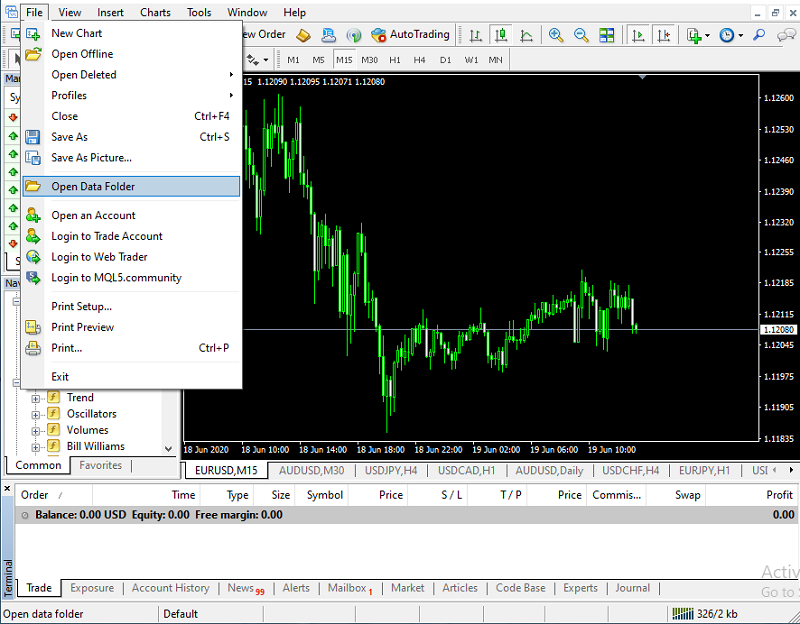
As you can see in the image above you should first click on “Open Data Folder” from the “File” tab.
A window will open as shown below.
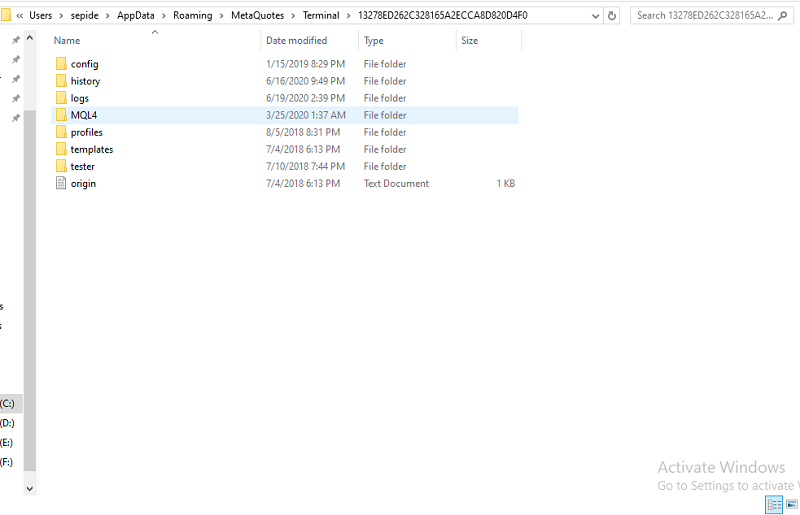
Click on the MQL4 folder.
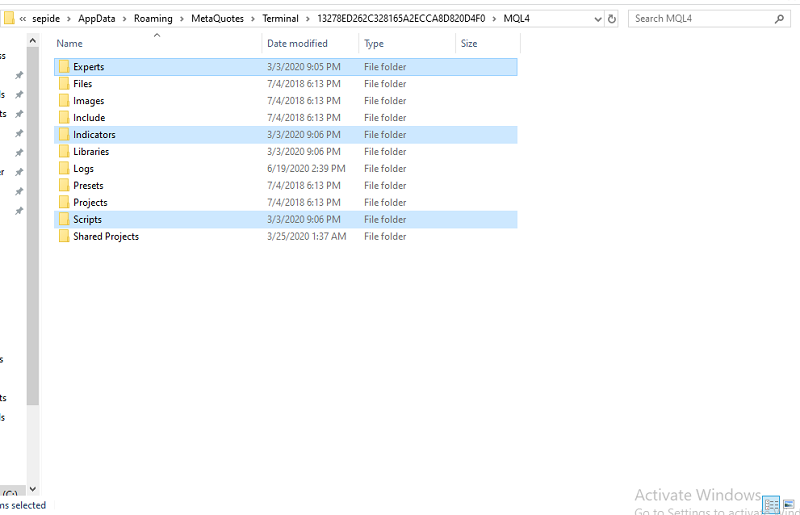
As shown above, you can well see the Scripts, Experts and Indicators folders.
To install each, copy the downloaded file to the related folder.
Experts: Experts
Indicators: Indicators
Scripts: Scripts
You no longer need the opened folders. Close them all.
If the MetaTrader platform is open, close it and run it again.
Running scripts, experts and indicators in MetaTrader
After you ran MetaTrader again, if you are not seeing the Navigator window on the left side of the chart, open this window as shown below.
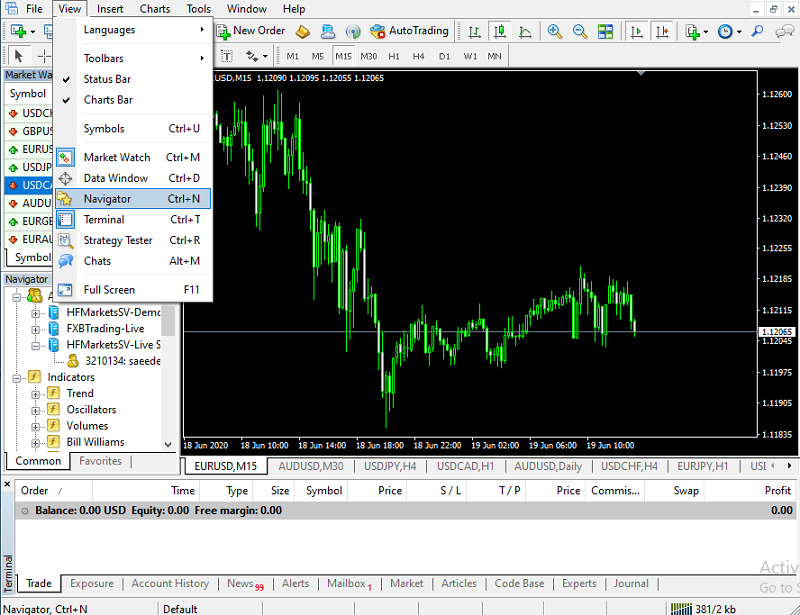
On the View tab, click on the Navigator to display this window next to the chart inside MetaTrader.
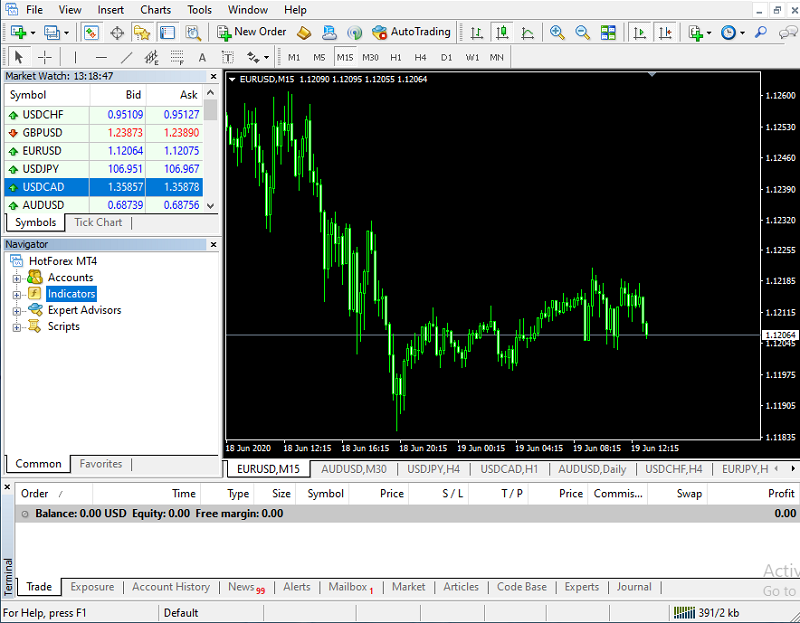
As you can see, there are script, expert and indicator folders in this window.
Just click on the + sign next to each of the folders to see the full list of the files in these folders.
Tips:
The extension of the file you have at your hand, may be in two forms: whether .MQ4 or Ex4.
If your file extension is .Ex4, the steps we described are completely correct.
But if your file extension is .MQ4, you have to create the executable file (Ex4) by Meta Editor program.
Hence, after placing the file in the desired folder while MetaTrader is open, press F4 key to Open the Meta Editor program.
From the File menu – Open> Open the file and press F5 to Compile.
Now your .Ex4 file is ready and you can use it.
Hey TejaratFX, I’ve been trying to follow your guide on installing indicators, and honestly, I’m stuck on the part about .MQ4 and .Ex4 files. I’ve read the ‘Tips’ section multiple times, especially where it talks about using Meta Editor if you have an .MQ4 file, but it’s just not clicking for me. I get that you need to compile it, but the steps feel a bit abstract.
Could you maybe walk through an actual example? Like, if I just downloaded an indicator called ‘MySuperIndicator.mq4’, what exactly would I do after putting it in the ‘Indicators’ folder? I’m picturing it step-by-step in my head but keep getting lost somewhere between pressing F4 and hitting F5.
Absolutely, that’s a really common point of confusion for newcomers, and we’re happy to clarify! You’re spot on that the difference between .MQ4 and .Ex4 and the compilation step can feel a bit abstract until you’ve done it once. Let’s break down exactly what to do with your ‘MySuperIndicator.mq4’ file.
First, a quick refresher:
.MQ4 files are the source code (like a recipe) for your indicator, Expert Advisor, or script. MetaTrader itself can’t directly ‘run’ these.
.Ex4 files are the compiled, executable version (like the finished dish) that MetaTrader can actually use and display on your chart.
So, if you only have MySuperIndicator.mq4, you need to ‘cook’ it into an .Ex4 file. Here’s the step-by-step process you’d follow for your ‘MySuperIndicator.mq4’ after you’ve already placed it in the correct folder (e.g., MQL4/Indicators):
1. Ensure MetaTrader is Open: Make sure your MetaTrader platform is running. This is important because MetaEditor needs to be linked to your running MT4 instance.
2. Open MetaEditor: While in MetaTrader, press the F4 key on your keyboard. This will launch the MetaEditor program. You’ll see a separate window pop up, which looks like a coding environment.
3. Locate and Open Your .MQ4 File: In MetaEditor, go to the `File` menu at the top. Then select `Open`. A file browser window will appear, which should automatically navigate to your MetaTrader’s `MQL4` folder structure. You’ll need to browse to `MQL4/Indicators` and find `MySuperIndicator.mq4`. Select it and click `Open`.
4. Initiate Compilation: Once `MySuperIndicator.mq4` is open in the MetaEditor window (you’ll see its code), look for the ‘Compile’ button on the toolbar (it often looks like a play button or has a small gear icon). Alternatively, and this is the quicker way mentioned in the article, simply press the F5 key on your keyboard.
5. Check for Success: After pressing F5, look at the ‘Errors/Warnings’ tab at the bottom of the MetaEditor window. Ideally, you want to see ‘0 Errors’ and ‘0 Warnings’. If you see errors, it means there’s an issue with the code itself, and it won’t compile correctly. If it compiles successfully, MetaEditor will automatically create `MySuperIndicator.ex4` in the same `MQL4/Indicators` folder where your .mq4 file is.
6. Refresh MetaTrader: Now you can close MetaEditor. Go back to your MetaTrader platform. If you don’t see `MySuperIndicator` listed in your Navigator window under ‘Indicators’, right-click on the ‘Indicators’ heading in the Navigator and select ‘Refresh’. You should now see `MySuperIndicator` ready to be dragged onto your chart.
So, for your ‘MySuperIndicator.mq4’, once it’s in the Indicators folder, the sequence is: `F4` (open MetaEditor) -> `File > Open > MySuperIndicator.mq4` -> `F5` (compile). After that, a quick refresh of your Navigator in MT4, and you’re good to go! This process essentially turns the blueprint into the usable tool for your trading. Hope this detailed walkthrough helps clear things up!
Hey TejaratFX team, I’m new to MetaTrader and just downloaded a custom indicator. Could you give me a quick rundown on how to get it installed? I’m a bit lost on where to put the files.
Certainly! Installing custom indicators, Expert Advisors (EAs), or scripts in MetaTrader 4 or 5 is a straightforward process.
1. **Open MetaTrader:** Launch your MetaTrader platform.
2. **Access Data Folder:** Go to “File” > “Open Data Folder.”
3. **Navigate to MQL4/MQL5:** Inside the Data Folder, open the “MQL4” folder (for MT4) or “MQL5” folder (for MT5).
4. **Place Files:**
* For **Indicators (.ex4 or .mq4)**: Place them in `MQL4/Indicators` or `MQL5/Indicators`.
* For **Expert Advisors (.ex4 or .mq4)**: Place them in `MQL4/Experts` or `MQL5/Experts`.
* For **Scripts (.ex4 or .mq4)**: Place them in `MQL4/Scripts` or `MQL5/Scripts`.
5. **Refresh/Restart:** Close the Data Folder, then in MetaTrader, go to the “Navigator” window (Ctrl+N), right-click on “Indicators,” “Expert Advisors,” or “Scripts” and select “Refresh.” If your platform doesn’t show them, restart MetaTrader.
6. **Drag and Drop:** You can then drag and drop the desired item from the Navigator window onto your chart.
Remember, TejaratFX is dedicated to providing educational resources and insights into financial markets and trading platforms. We do not offer brokerage services.